


 Select your city
 Login
Login
 Select your city Login
![11 Mobile Phones with Highest Resale Value [Expert Picks]](/_next/image?url=https%3A%2F%2Fadmin.cashmartindia.com%2Fuploads%2Fblogs%2F1773133616.jpg&w=128&q=75)


 04 Aug 25
 by Admin
 0 Comments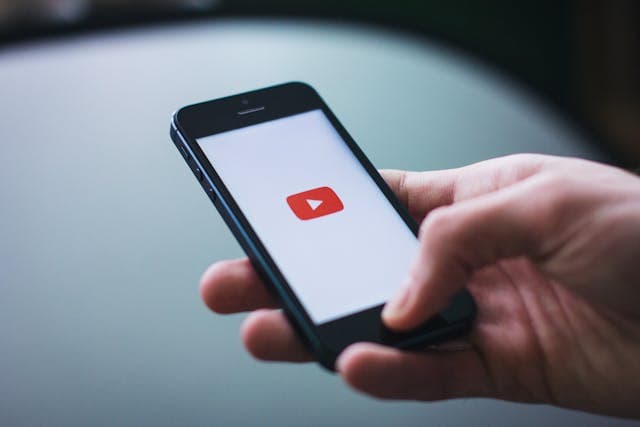
Did you know that YouTube comes pre-installed on nearly all Android phones and tablets? But YouTube not working on your Android phone can be incredibly frustrating.
Millions of users worldwide face YouTube problems on their Android devices. These range from videos that won't play to app crashes and connection errors. The biggest problem can come from a weak internet connection, outdated apps, or device compatibility issues.
The good news is that most YouTube problems have simple fixes. Your device might show playback errors, connection problems, or app glitches - we've got solutions for all of them. This piece walks you through proven steps to get YouTube working smoothly on your Android phone again.
Your Android device's YouTube problems need proper diagnosis before you can fix them. Let's explore how to identify the most common YouTube issues that users face.
YouTube displays specific error messages on Android phones that help you learn about why it happens. Here are the messages you might see:
These messages appear because of several factors like weak internet signals, old app versions, cache problems, or device compatibility issues. Older Android phones might have trouble running newer YouTube versions.
The platform has started to block third-party apps that stop ads recently. The official sources say users might see "The following content is not available on this app" when they use unauthorized apps.
YouTube might not work properly because other apps on your phone interfere with it. Safe mode offers a quick way to test this by turning off all downloaded apps while keeping your data safe.
Most Android devices let you enter safe mode this way:
Try YouTube after entering safe mode. If it works fine, another app causes the problem. You can restart your phone to exit safe mode. Then remove your recent app downloads one at a time to find the problematic one.
This method works exceptionally well when YouTube shows the "YouTube keeps stopping" error that many Android users face. Safe mode helps you figure out if YouTube itself has issues or if another app causes the problem.
Network connectivity problems usually cause YouTube to stop working on your Android phone. You might see those annoying "You're offline" messages or loading circles that spin forever. These signs point to internet problems rather than issues with the app itself.
Your Wi-Fi connection needs a quick check if YouTube shows errors like "You're offline" or "Check your internet connection":
YouTube might load with slower internet speeds, but smooth video playback needs good speed. You need a minimum 7 Mbps connection to watch HD content smoothly. Each video quality needs specific speeds:
Your unstable connection might improve if you move closer to the router. Try reducing the number of devices on your network. The last option is to restart your router - unplug it for 30 seconds before plugging it back in.
YouTube works fine on Wi-Fi but stops working on mobile data? Here's what you can do:
Check if YouTube has permission to use mobile data. Some Android users find their YouTube app has "disable data usage" accidentally selected. The fix is simple:
YouTube should show video listings even on 2G connections, though videos might not play. Switch between connections by turning off Wi-Fi and enabling mobile data, or do the opposite.
The Airplane mode trick often helps:
VPNs often create YouTube connectivity problems on Android devices. YouTube might restrict access if it detects VPN usage.
These steps help fix VPN-related issues:
Your VPN needs to work with YouTube? Connect to different servers or change your VPN settings to exclude YouTube from traffic routing.
YouTube problems on Android devices usually stem from software issues. A quick network connection check should be your first step before tackling app-related problems.
Apps that aren't up to date often behave strangely and show errors. The latest updates fix bugs and make apps run better. Here's how you can update YouTube on your Android phone:
Users with Android versions 5.0 and 5.1 need to accept new app permissions before updating. These permissions let you record videos, stream live content, and tag locations to get better recommendations.
Many common YouTube problems can be fixed by clearing the cache, and your personal data stays safe. The cache only holds temporary files that help content load faster.
Here's how to clear YouTube's cache on Android:
Your account settings and recommendations stay intact because they live on your YouTube account, not on your phone. The cache cleanup helps fix loading and formatting problems that often affect the app.
A fresh installation might be your best option if updates and cache clearing don't help. Most Android phones come with YouTube pre-installed, so reinstalling brings back the factory version.
The reinstallation steps are simple:
This process resets pre-installed versions to their original state. You'll probably need to run an update right after installation.
The app uninstall removes downloaded videos and temporary files, but don't worry - your account details, subscriptions, and watch history stay safe on Google's servers.
Your Android device might be causing YouTube problems, beyond just network and software issues. Here are some device-specific problems that could stop YouTube from working right on your Android phone.
Older Android operating systems don't deal very well with the newest YouTube app. Google updates its security standards regularly. YouTube eventually stops working on older devices because of this. Your Android version probably doesn't meet current YouTube security requirements if you see the message "YouTube is no longer available because this device doesn't meet the latest requirements."
You can try these fixes:
Google stops supporting older versions over time, which means you'll lose access to the YouTube app if you can't update your Android OS. This happens because older systems can't handle YouTube's new security features.
YouTube takes up a lot of storage space on your device. The app creates cache data that piles up and can reach 3-4GB. Devices with limited storage often have trouble running the app properly because of this buildup.
Here's how to handle YouTube's storage:
Your Android device's wrong date and time settings can actually break YouTube. Google's servers might not sync properly with your phone when these settings are off.
Fix time and date this way:
These solutions target the basic device problems that might stop YouTube from working on your Android phone.
YouTube problems on Android phones might look tough to fix, but most have simple solutions. Users can solve almost any YouTube-related problem with the right diagnosis and step-by-step troubleshooting.
Bad network connection is the biggest problem behind YouTube issues. The app usually works normally after checking Wi-Fi strength, testing mobile data, or tweaking VPN settings. On top of that, it helps to update the app and clear cache regularly to prevent common problems.
Older Android devices often struggle with YouTube compatibility. Your current phone might have trouble handling newer YouTube features or security requirements. This gives you a chance to sell your old used phone to us and get the latest model.
Note that the secret to fixing connection errors, app glitches, or device limitations lies in finding the root cause first. Start with basic fixes and try more complex solutions until YouTube works smoothly again on your Android device.
YouTube may not work on your Android phone due to various reasons, including poor internet connectivity, outdated app versions, corrupted cache, or device compatibility issues. Older Android devices might struggle to run the latest YouTube app version.
To fix YouTube not loading videos, first check your internet connection. Ensure you have at least 7 Mbps for HD content. If the issue persists, try clearing the app's cache, updating the YouTube app, or reinstalling it.
If YouTube works on Wi-Fi but not on mobile data, ensure the app has permission to use mobile data. Go to Settings > Applications > YouTube and uncheck "disable data usage" if it's selected. You can also try toggling Airplane mode on and off to reset your connection.
Yes, VPNs can sometimes cause YouTube connectivity problems on Android devices. YouTube may restrict access when it detects VPN usage. Try temporarily disabling your VPN, clearing your browser cache, or using a different browser to resolve this issue.
To update YouTube on your Android phone, open the Google Play Store app, tap your profile picture, select "Manage apps & games," find YouTube under "Updates available," and tap the "Update" button next to it. Keeping the app updated can resolve many common issues and improve performance.
References:
https://support.google.com/youtube/answer/10232409?hl=en&co=GENIE.Platform%3DAndroid
https://community.oneplus.com/thread/340870
https://support.google.com/youtube/answer/6098135?hl=en&co=GENIE.Platform%3DAndroid
https://www.reddit.com/r/youtube/comments/1bppg6g/why_does_youtube_take_up_so_much_space/?rdt=62527
https://support.google.com/youtube/answer/3037019?hl=en
https://support.google.com/youtube/answer/7370539?hl=en&co=GENIE.Platform%3DAndroid
https://www.wikihow.com/Clear-YouTube-Cache
https://xdaforums.com/t/help-youtube-is-not-supported-anymore.3899669/
https://www.quora.com/Whether-offline-videos-in-YouTube-consume-my-phone-storage-space-or-not


50000+ - Devices Picked

0 Comments